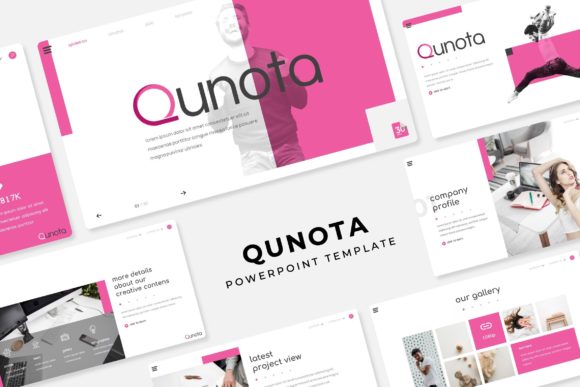
Qunota Power Point Template: A Real-World Look at 150 Slides, 5 Colors, and Endless Possibilities
You have probably sat there staring at a blank presentation, wondering how to turn a jumble of ideas into something that actually looks professional. That is exactly where the Qunota Power Point Template steps in. It is a large presentation kit built for people who need results without starting from a white canvas every time. With 150 total slides spread across five premade color variations, this template gives you 30 slides per color set. That means you pick your palette, open the file, and start building instead of formatting.
What makes this template different from the endless list of presentation files out there? It comes down to how it handles structure. The slides are built on Master Slides, so any change you make to a parent slide updates every related slide automatically. That is a huge time saver when you realize halfway through that your headings need to be a slightly different size. The graphics are pixel-perfect illustrations, not blurry clip art. And the picture placeholders work with drag and drop. You pull an image into the frame, and it fits without you having to crop or resize manually.
Where People Actually Use the Qunota Power Point Template
A template like this one finds its way into surprising places. You might assume it is only for corporate presentations, but that is just the start. Freelancers use it for client proposals. Educators build course materials with it. Bloggers create lead magnets and opt-in freebies. Small business owners throw together investor decks in an afternoon. The variety comes from the layout options and the infographic elements baked into the design.
Client proposals that close faster
If you are a freelancer or agency owner, your proposal says a lot about how you work. A messy, inconsistent deck makes potential clients nervous. The Qunota Power Point Template gives you section break slides to separate your scope of work, timeline, pricing, and case studies. The handcrafted infographics help you present data like project milestones or budget breakdowns without making it look like a spreadsheet threw up on the screen. You can use the portfolio slide to show past work examples. That single slide can make the difference between a client saying yes or asking for more proof.
Educational content that keeps attention
Teachers and trainers face a tough crowd. Students and trainees have seen a thousand boring slides. The Qunota Power Point Template helps you break that pattern. The 30 slides per color variation mean you can create a full course module without repeating layouts. Use infographic slides for summarizing complex topics. Use gallery slides for visual case studies. The color variations let you switch palettes for different topics or courses. A red-orange set might work for a high-energy workshop, while a cooler blue set fits a technical training session.
Marketing lead magnets and opt-in content
Content creators and marketers know that a well-designed PDF or slide deck can double your email signups. The Qunota Power Point Template works perfectly for this. Export any of the 150 slides as high-resolution images or PDF pages. Create a checklist, a mini-guide, or a resource roundup. The drag-and-drop picture placeholders make it easy to add your own brand imagery or screenshots. Since the graphics are pixel-perfect, your lead magnet looks professional even if you are not a designer. That builds trust with your audience before they even buy anything.
Business presentations that do not bore people
Internal team meetings, board updates, and sales pitches all suffer from the same problem: too many slides, too little visual variety. The Qunota Power Point Template solves this with built-in section break slides and gallery layouts. You can separate each part of your presentation with a clean break slide that gives your audience a moment to reset. The resizable and editable graphics mean you can adjust charts, icons, and illustrations to match your actual data. You are not stuck with fake numbers or generic icons that do not quite fit.
Who Benefits from This Template and How
Different people use the same template in completely different ways. That is the mark of a versatile product. Let me walk through a few realistic scenarios.
The solopreneur building a brand from scratch
When you are running everything yourself, design time is expensive. The Qunota Power Point Template gives you five color variations right out of the box. Open the PPTX file that matches your brand colors, or adjust the premade colors if you need something specific. You get 30 slides to work with, which is enough for a full pitch deck, a media kit, and a product launch presentation. The master slides make it easy to add your logo to every slide in one move. That kind of consistency makes a one-person business look like a full team.
The blogger or publisher creating visual content
Bloggers need visuals for social media, email newsletters, and free downloads. The Qunota Power Point Template gives you a library of layouts that you can repurpose again and again. Use the portfolio slide to showcase your best posts. Use infographic slides to create shareable statistics graphics. Because the template includes 150 total slides, you will not run out of variety. And since all graphics are editable, you can swap colors, resize elements, or change text to match each new piece of content.
The small business owner pitching to investors or partners
A small business owner often has one shot to make a good impression. The Qunota Power Point Template helps you put together a deck that covers your market research, business model, competition, and financial projections. The handcrafted infographics let you present revenue charts and user growth data without making it look cluttered. The picture placeholders make it easy to drop in product photos or team headshots. You can use the gallery slide to show your product in action or your retail space. The result is a presentation that feels custom-made, even though you built it from a template.
The educator or trainer who needs repeatable systems
If you teach the same course multiple times, you want a system that saves you work. The Qunota Power Point Template works with Master Slides, so you can update your course materials across all 30 slides of a color set in minutes. Change the font, adjust the color scheme, or replace a graphic, and it applies everywhere. That is especially useful if you teach different cohorts and want to keep materials fresh. The section break slides also help you structure each module logically, so students always know where they are in the lesson.
What to Consider Before Downloading or Using This Template
No template is perfect for every situation. Before you buy or download the Qunota Power Point Template, think about a few things.
First, the photographs in the preview are not included. That is standard, but worth mentioning because the preview images set an expectation. You will need to supply your own photos or use stock images. The picture placeholders make that easy, but it is an extra step. If you do not have a library of images ready, plan for that.
Second, the template includes a Readme First file and a link to download the free font used in the design. Do not skip this step. If you open the template without the correct font installed, your text may reflow or look different. Download the font first, install it, then open the PPTX file. That takes two minutes and saves you a headache.
Third, think about whether 150 slides is too many or too few for your needs. The template gives you 30 slides per each of the 5 color variations. You might only use one color variation and ignore the rest. That is fine. The value is in having options. If you need a template for a single quick presentation, a smaller kit might be more efficient. If you create presentations regularly, the variety pays off over time.
Fourth, the template is built in PowerPoint and uses Master Slides. That means you need PowerPoint installed on your computer. It does not work with free presentation software unless that software supports Master Slides. Check your software compatibility before purchasing. If you use Google Slides exclusively, you may face limitations translating the file.
Fifth, consider your own comfort level with editing. The Qunota Power Point Template is resizable and editable, but it helps to know basic PowerPoint actions like changing colors, resizing graphics, and replacing text. You do not need to be a designer, but familiarity with the software makes the process smoother. If you are brand new to PowerPoint, watch a short tutorial on Master Slides first.
Real Outcomes You Can Expect
A template like this one does not design your presentation for you. It gives you a framework that removes the friction of starting from scratch. You spend your time on content and messaging instead of aligning boxes and choosing fonts. The outcome is a presentation that looks intentional and professional, whether you are pitching to a client, teaching a class, or building your brand. The 5 premade colors give you flexibility without overwhelming you with choices. The 150 slides give you depth without forcing you to reuse the same layout five times in a row.
The most practical outcome is speed. With drag-and-drop picture placeholders, pixel-perfect illustrations, and master slides, you can go from zero to a finished deck in a few hours instead of a few days. That matters when you are juggling multiple projects or working against a deadline. The template becomes a tool you reach for repeatedly, not a one-time fix.
If you create presentations more than once per month, the Qunota Power Point Template is the kind of resource that pays for itself in time saved and impressions made. It is not about having fancy slides. It is about having slides that work so you can focus on what you actually need to say.